Installation on Windows
Check supported platforms
See the list of supported operating systems for the DBmarlin server installation.
Downloading the latest version
Download the DBmarlin-Agent-Windows-[VERSION]-x64-setup.exe file from https://download.dbmarlin.com
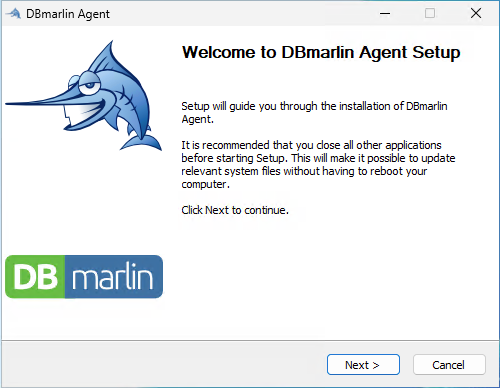
Run the installer and follow the prompts.
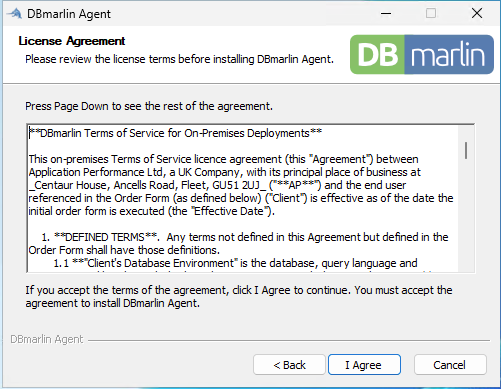
Accept the license agreement.
Select the installation location.

Set the values of the 3 DBMARLIN environment variables.
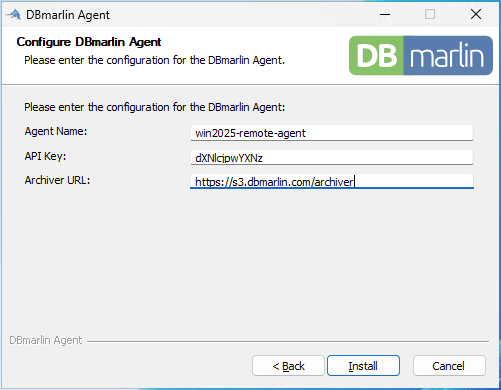
- DBMARLIN_AGENT_NAME can be any unique identifier for your remote agent up to 50 characters in length. If it is not set then the agent name defaults to “default”, which is name of the built-in agent. It is important therefore that each agent has its own unique name.
- DBMARLIN_ARCHIVER_URL is the URL endpoint of the archiver on your DBmarlin server. Remember to include the full URL including scheme://host:port/archiver. The default value for the built-in agent is http://localhost:9080/archiver which goes to the archiver port (9080) directly but for remote agents the port would usually be that of the Nginx reverse proxy (9090) unless you have another load balancer in front, in which case it would be the host and port of the load balancer.
- DBMARLIN_API_KEY is the Base64-encoded
username:passwordfor your DBmarlin server if you are using Nginx Basic Auth. If you are not using authentication then this environment variable can be omitted.
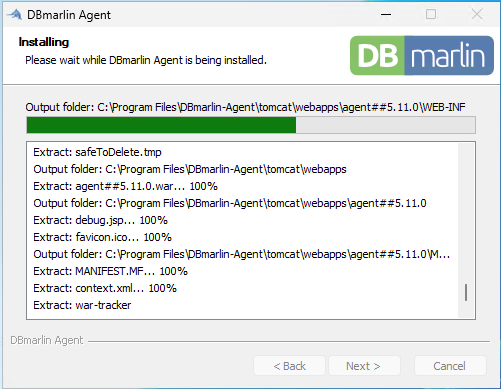
Wait till the file copy completes
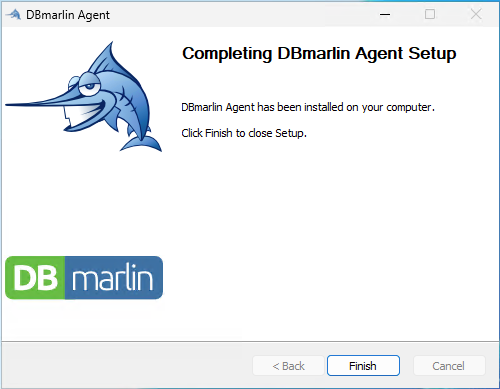
Click Finish.
Using SSL to secure agent->archiver communications
If you have enabled SSL on the DBmarlin server using an SSL Certificate that was signed by Certificate Authority (CA) then you will need to add the CA root certificate to the Java cacerts used by the DBmarlin agent. cacerts is the default truststore for Java which contains a list of trusted root certificate authorities (CAs).
The root certificate can be done using the java keytool command. You will need to adapt the command below to your own paths and certificate names.
# Add you CA Root cert to cacerts file
$DBMARLIN_HOME/java/jdk[VERSION]-jre/bin/keytool -import -trustcacerts -alias internalCA -file internal-ca.crt -keystore $DBMARLIN_HOME/java/jdk[VERSION]-jre/lib/security/cacerts -storepass changeit

# List the certs to see that it was added
keytool -list -keystore $JAVA_HOME/lib/security/cacerts -storepass changeit
Starting the remote agent process
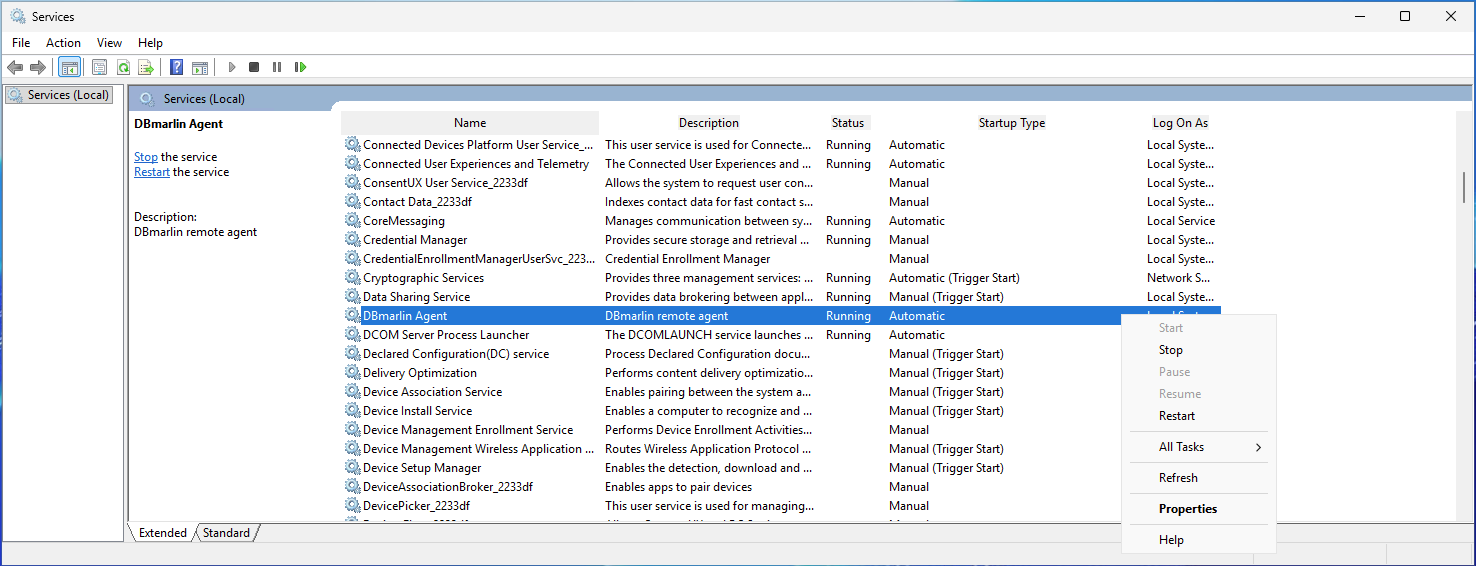
You can use Windows Service Manager to start the DBmarlin Agent service.
Chaning the 3 DBMARLIN agent environment variables
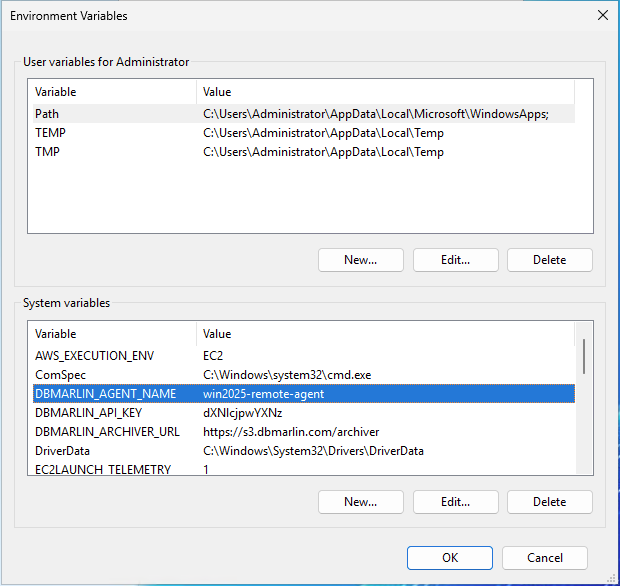
You can use the Windows Environment Variables Manager to change the 3 DBMARLIN agent environment variables.
Go into System Properties > Environment Variables
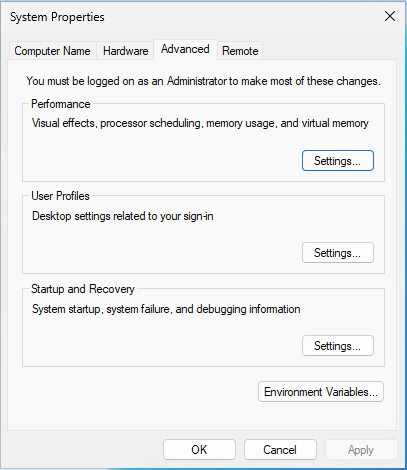
Here you can edit the DBMARLIN_ environment variables.