Installation on Windows
Check supported platforms
See the list of supported operating systems for the DBmarlin server installation.
Pre-requisites
The Windows Server must be 2012 R2 or newer.
Downloading the latest version
Download the dbmarlin-Windows-x64-[VERSION].exe file from https://download.dbmarlin.com
Running the Setup.exe
Double-click the installer to run.
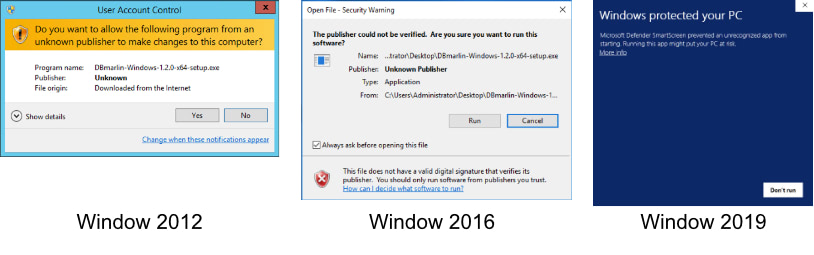
Microsoft Defender warning
If you see any messages like the ones below you can safely click Yes or Run. This message is shown because the installer is not code signed by a certificate authority.
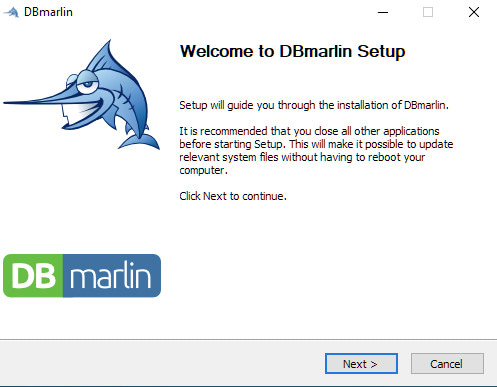
Start the installation
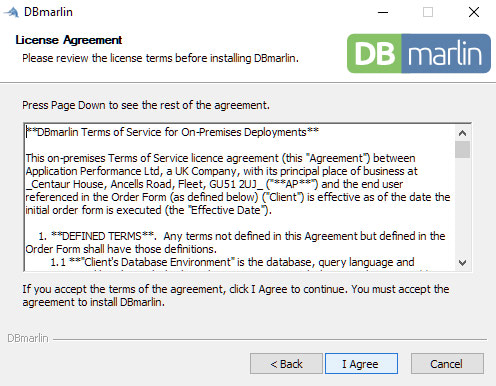
Accept the license agreement
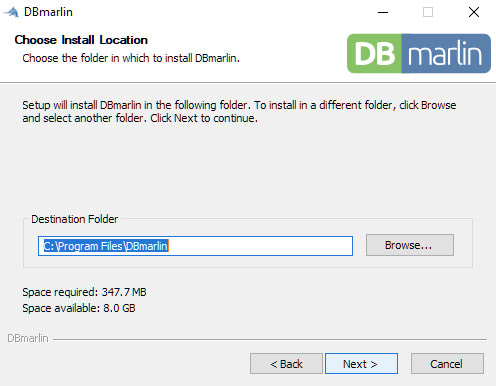
Choose the location for the DBmarlin program files
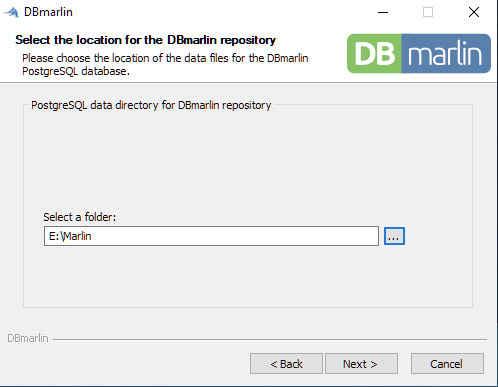
Choose the location for the DBmarlin database
DBmarlin uses PostgreSQL with TimescaleDB and the data can be placed onto a different disk for better performance.
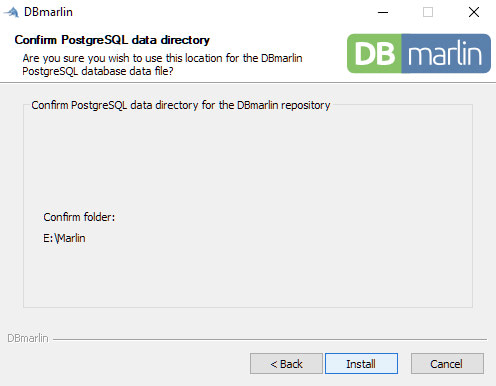
Confirm the location of the DBmarlin database
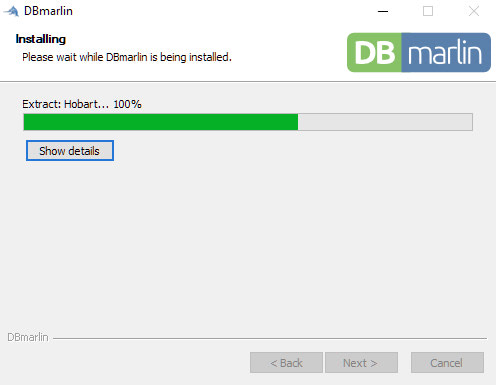
Wait for the files to copy
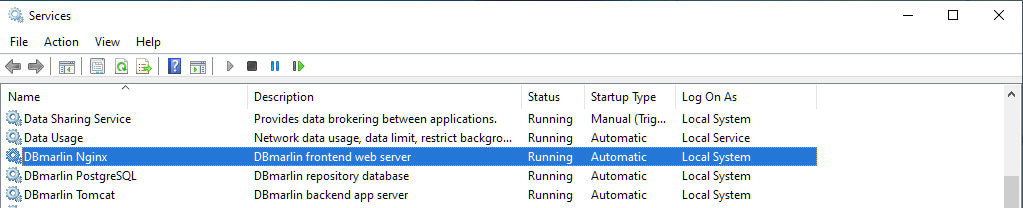
During this phase of the installation the DBmarlin database will be created as well as 3 Windows Services.
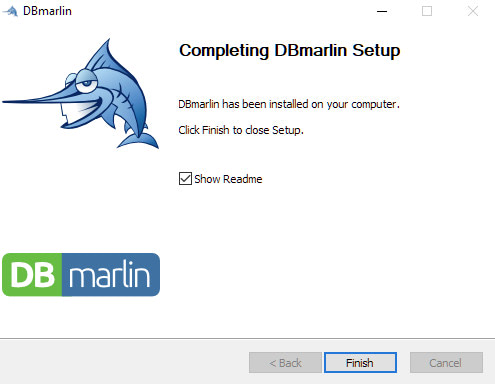
Installation complete
You can now choose to view the readme file or simply click finish.
Check the Windows Services are running
Run services.msc to see if the 3 DBmarlin Windows services are running.
Connecting to the DBmarlin UI
If all 3 services are started you can browse to http://[dbmarlin server]:9090/ in a modern browser (see supported browsers)
Uninstalling
Run uninstall.exe from the folder into which you installed DBmarlin. Alternatively go to Windows Control Panel ➡️ Add or Remove Programs.
Note that uninstalling will also remove the DBmarlin database and all data you have collected.