Setup Single sign-on
Requires DBmarlin 6.3.0 or above.
About SSO
Single sign-on (SSO) allows you to authenticate through and external identity provider like Microsoft Entra, Google, Okta, Auth0 or other OAuth2/OIDC provider. The SSO process uses OAuth 2.0 for authorization and OIDC (OpenID Connect) for identity.
Pre-requisites
You must enable authentication with at least one local user (Non-SSO) first before attempting to enable SSO.
If you already enabled authentication before 6.3.0 then you will need to copy the contents of auth.conf.example to auth.conf in the dbmarlin/nginx/conf directory as that file only gets create the first time you enable authentication.
Enable DBmarlin authentication
See the steps to enable basic authentication first. This is a prerequisite to enable SSO. Even if you are using SSO you will need at least 1 local user setup first by running the dbmarlin-add-user.sh (Linux) or dbmarlin-add-user.bat (Windows) script.
Setup steps with the SSO provider
We have example of the setup steps for:
Setup on the DBmarlin server
On the DBmarlin server you need to restart the Java Tomcat processes with some additional SSO related parameters.
Where to add the SSO parameters
DBmarlin server on Linux
For Linux the best place to add these would be in the systemd service definition for dbmarlin-tomcat. If you aren't running DBmarlin as a systemd service then it would be a good idea to set this up first. Click here for systemd setup
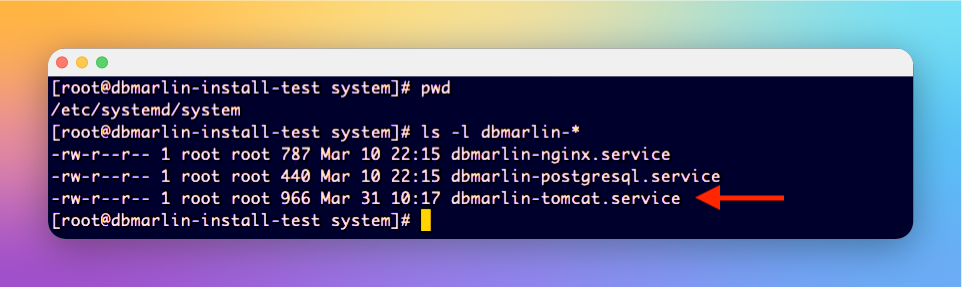
Remember to restart the dbmarlin-tomcat Linux Service after making the changes for them to be picked up.
DBmarlin server on Windows
For Windows the best place to add these would be to modify the DBmarlin Tomcat service startup params using DBmarlinTomcatw.exe which can be found in DBmarlin\Tomcat\bin. Add the extra -Dsso parameters in the Java Options section by appending to whatever option are already there.
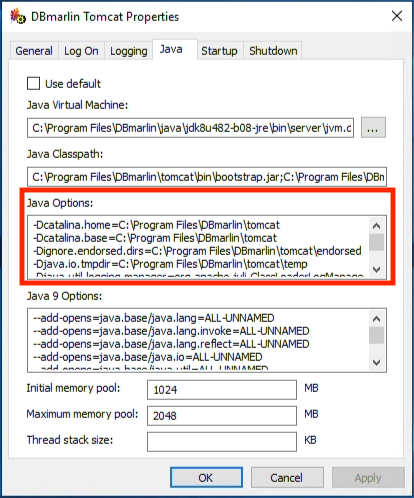
Append these Java options to the ones which are already there. It can be easier to copy these into a notepad window to edit and then copy back again.
-Dsso.enabled=true
-Dsso.providers=entra
-Dsso.entra.displayName=Microsoft Entra ID
-Dsso.entra.tenantId=your-tenant-id
-Dsso.entra.clientId=your-client-client-id
-Dsso.entra.clientSecret=your-client-secret
-Dsso.frontend.url=https://your-dbmarlin-host/login
Remember to restart the DBmarlin Tomcat Windows Service after making the changes for them to be picked up.
SSO Parameters to add
Microsoft Entra params
These are the parameters required for Microsoft Entra authentication.
JAVA_OPTS="${JAVA_OPTS} -Dsso.enabled=true -Dsso.providers=entra"
JAVA_OPTS="${JAVA_OPTS} -Dsso.entra.displayName='Microsoft Entra ID'"
JAVA_OPTS="${JAVA_OPTS} -Dsso.entra.tenantId=<tenant-id>"
JAVA_OPTS="${JAVA_OPTS} -Dsso.entra.clientId=<client-id>"
JAVA_OPTS="${JAVA_OPTS} -Dsso.entra.clientSecret=<client-secret>"
JAVA_OPTS="${JAVA_OPTS} -Dsso.frontend.url=https://<dbmarlin-server>/login"
Google params
These are the parameters required for Google authentication.
JAVA_OPTS="${JAVA_OPTS} -Dsso.google.displayName=Google"
JAVA_OPTS="${JAVA_OPTS} -Dsso.google.clientId=<client-id>"
JAVA_OPTS="${JAVA_OPTS} -Dsso.google.clientSecret=<client-secret"
JAVA_OPTS="${JAVA_OPTS} -Dsso.frontend.url=https://<dbmarlin-server>/login"
Okta params
These are the parameters required for Okta authentication.
JAVA_OPTS="${JAVA_OPTS} -Dsso.enabled=true -Dsso.providers=okta"
JAVA_OPTS="${JAVA_OPTS} -Dsso.okta.displayName=Okta"
JAVA_OPTS="${JAVA_OPTS} -Dsso.okta.domain=<your-domain>.okta.com"
JAVA_OPTS="${JAVA_OPTS} -Dsso.okta.clientId=<client-id>"
JAVA_OPTS="${JAVA_OPTS} -Dsso.okta.clientSecret=<client-secret>"
JAVA_OPTS="${JAVA_OPTS} -Dsso.frontend.url=https://<dbmarlin-server>/login"
Auth0
JAVA_OPTS="${JAVA_OPTS} -Dsso.enabled=true"
JAVA_OPTS="${JAVA_OPTS} -Dsso.providers=auth0"
JAVA_OPTS="${JAVA_OPTS} -Dsso.auth0.displayName=Auth0"
JAVA_OPTS="${JAVA_OPTS} -Dsso.auth0.domain=<tenant>.auth0.com"
JAVA_OPTS="${JAVA_OPTS} -Dsso.auth0.clientId=<client-id>"
JAVA_OPTS="${JAVA_OPTS} -Dsso.auth0.clientSecret=<client-secret>"
JAVA_OPTS="${JAVA_OPTS} -Dsso.frontend.url=https://<dbmarlin-server>/login"
Other OAuth2/OIDC params
JAVA_OPTS="${JAVA_OPTS} -Dsso.enabled=true"
JAVA_OPTS="${JAVA_OPTS} -Dsso.providers=customoidc"
JAVA_OPTS="${JAVA_OPTS} -Dsso.customoidc.type=oidc"
JAVA_OPTS="${JAVA_OPTS} -Dsso.customoidc.displayName='Custom OIDC'"
JAVA_OPTS="${JAVA_OPTS} -Dsso.customoidc.authorizationEndpoint=https://idp.example.com/oauth2/authorize"
JAVA_OPTS="${JAVA_OPTS} -Dsso.customoidc.tokenEndpoint=https://idp.example.com/oauth2/token"
JAVA_OPTS="${JAVA_OPTS} -Dsso.customoidc.jwksEndpoint=https://idp.example.com/.well-known/jwks.json"
JAVA_OPTS="${JAVA_OPTS} -Dsso.customoidc.userinfoEndpoint=https://idp.example.com/oauth2/userinfo"
JAVA_OPTS="${JAVA_OPTS} -Dsso.customoidc.clientId=<client-id>"
JAVA_OPTS="${JAVA_OPTS} -Dsso.customoidc.clientSecret=<client-secret>"
JAVA_OPTS="${JAVA_OPTS} -Dsso.customoidc.scopes=openid profile email"
JAVA_OPTS="${JAVA_OPTS} -Dsso.customoidc.usernameClaim=preferred_username"
JAVA_OPTS="${JAVA_OPTS} -Dsso.customoidc.emailClaim=email"
JAVA_OPTS="${JAVA_OPTS} -Dsso.customoidc.logoutEndpoint=https://idp.example.com/logout"
JAVA_OPTS="${JAVA_OPTS} -Dsso.frontend.url=https://<dbmarlin-server>/login"
Video walkthrough
Short video shows step by step how to enable SSO for DBmarlin using Microsoft Entra in the example.