info
Requires DBmarlin 6.3.0 or above.
Setup steps in Google Cloud Console to setup SSO for DBmarlin.
Access Google Cloud Console
- Go to
https://console.cloud.google.com/ - Sign in with your Google account
Create Project (or use existing project)
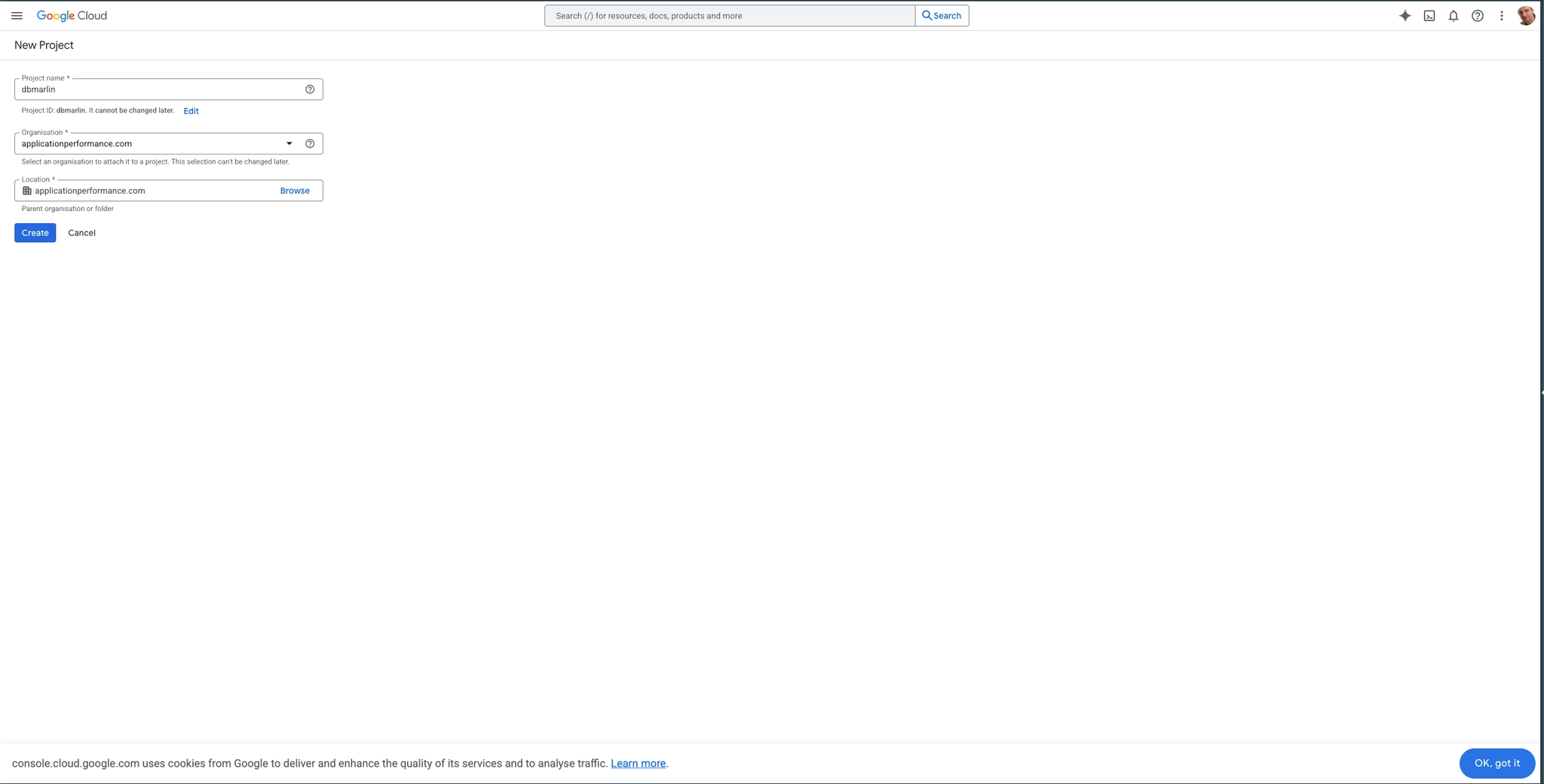
If you don't have a project yet, create one:
- Click "Create Project" or "New Project"
- Give it a name (e.g., "DBmarlin SSO")
- Select your organization/billing account if applicable
Enable Required APIs
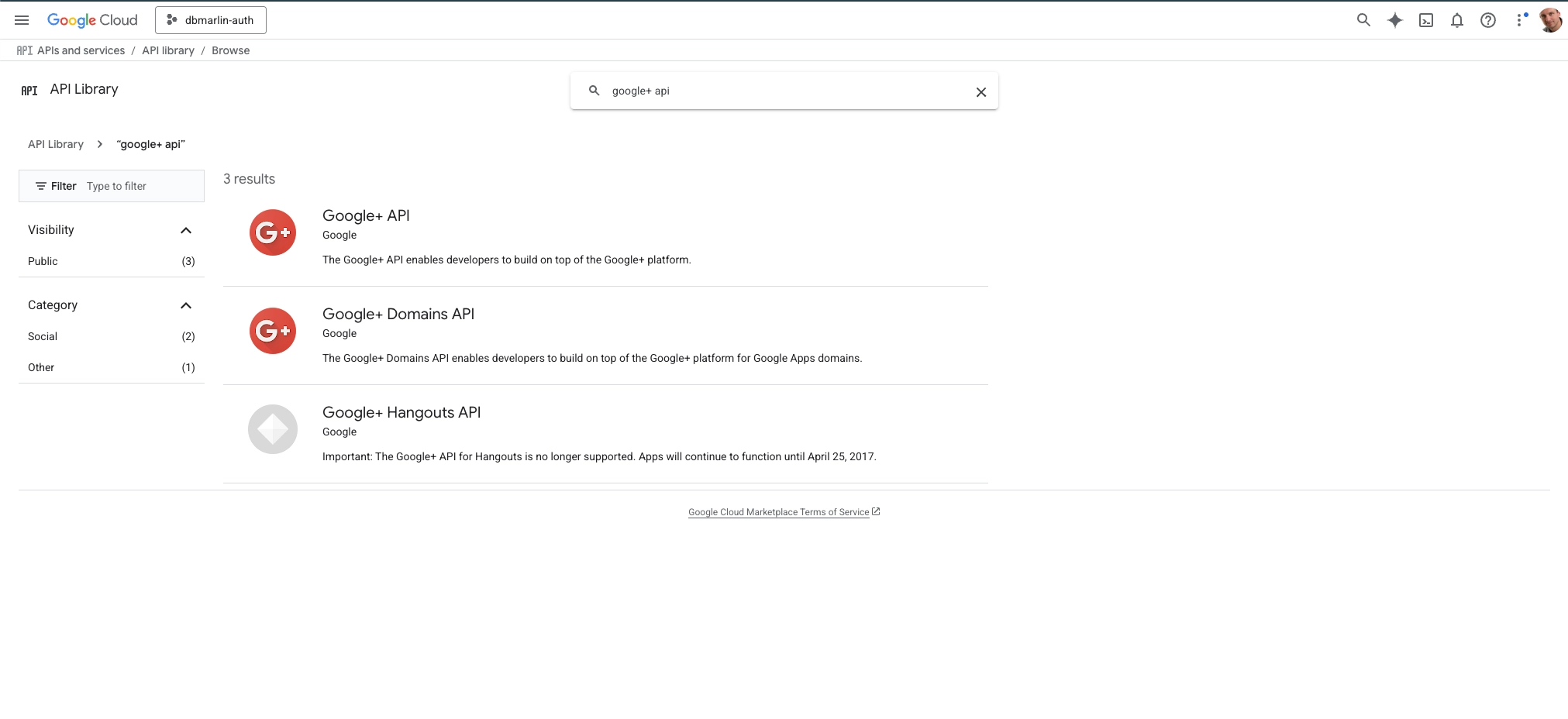
- In the left sidebar, go to "APIs & Services" → "Library"
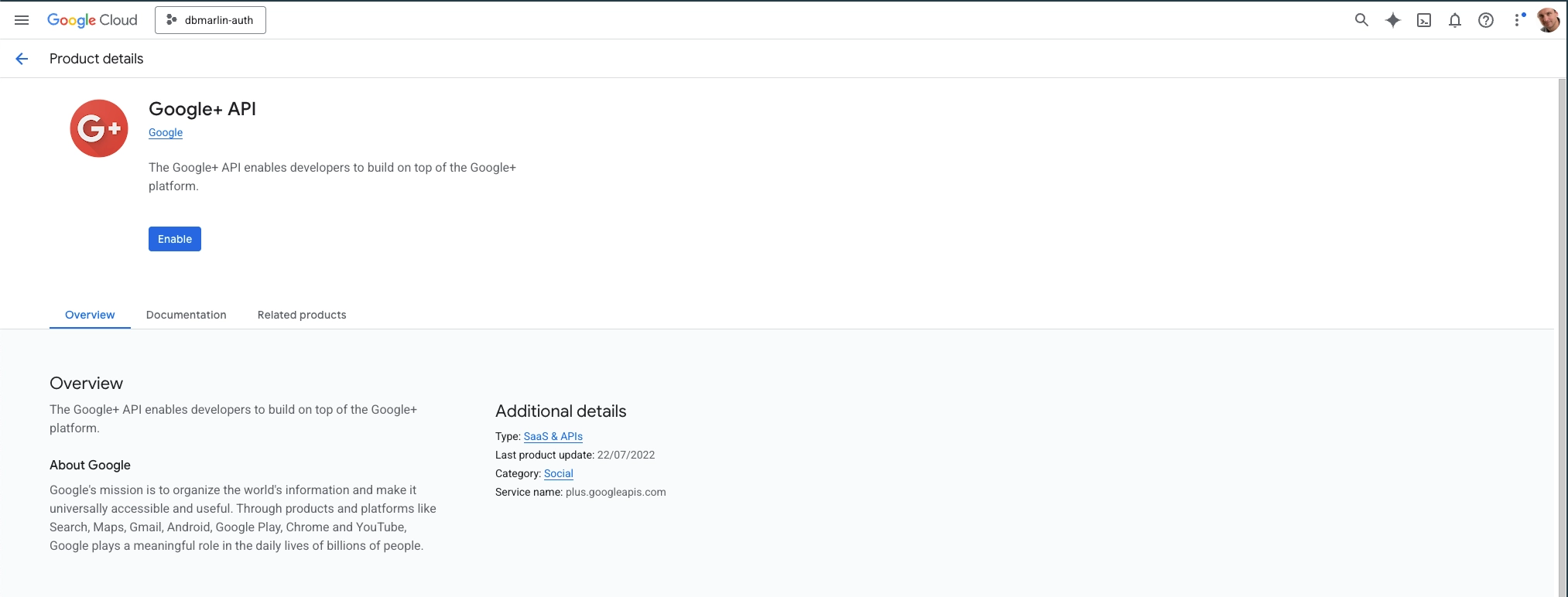
- Search for "Google+ API" and click on it
- Click "Enable" to activate the Google+ API (required for user profile information)
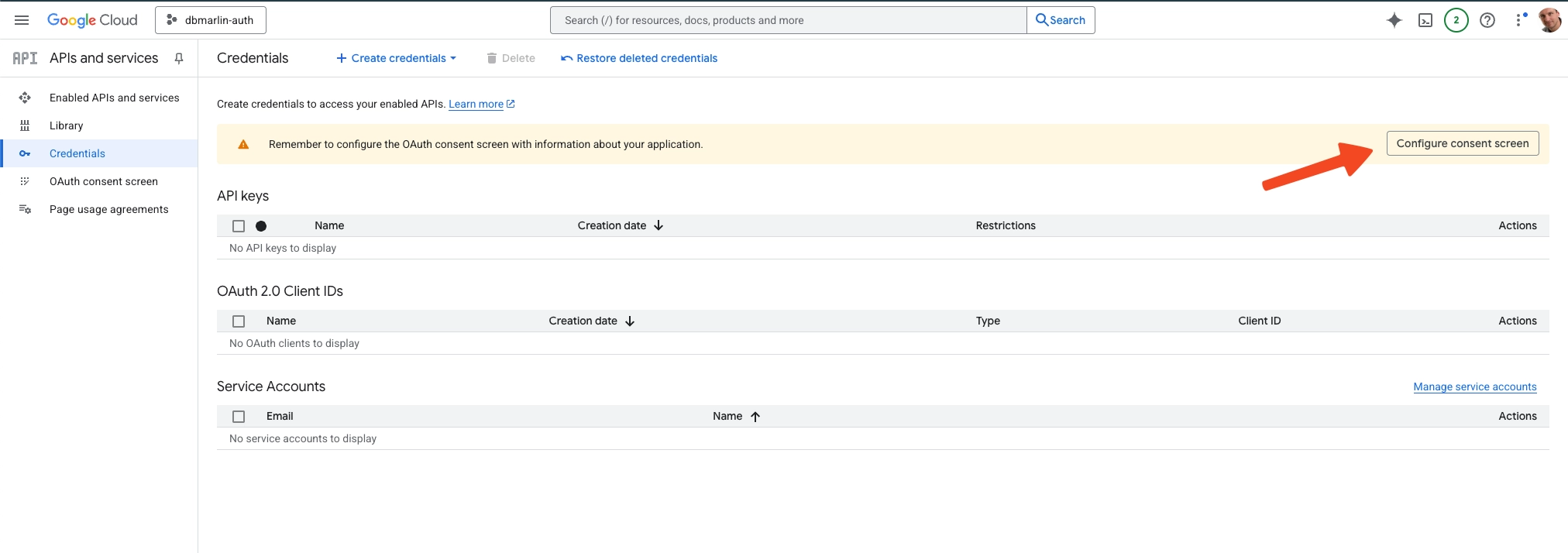
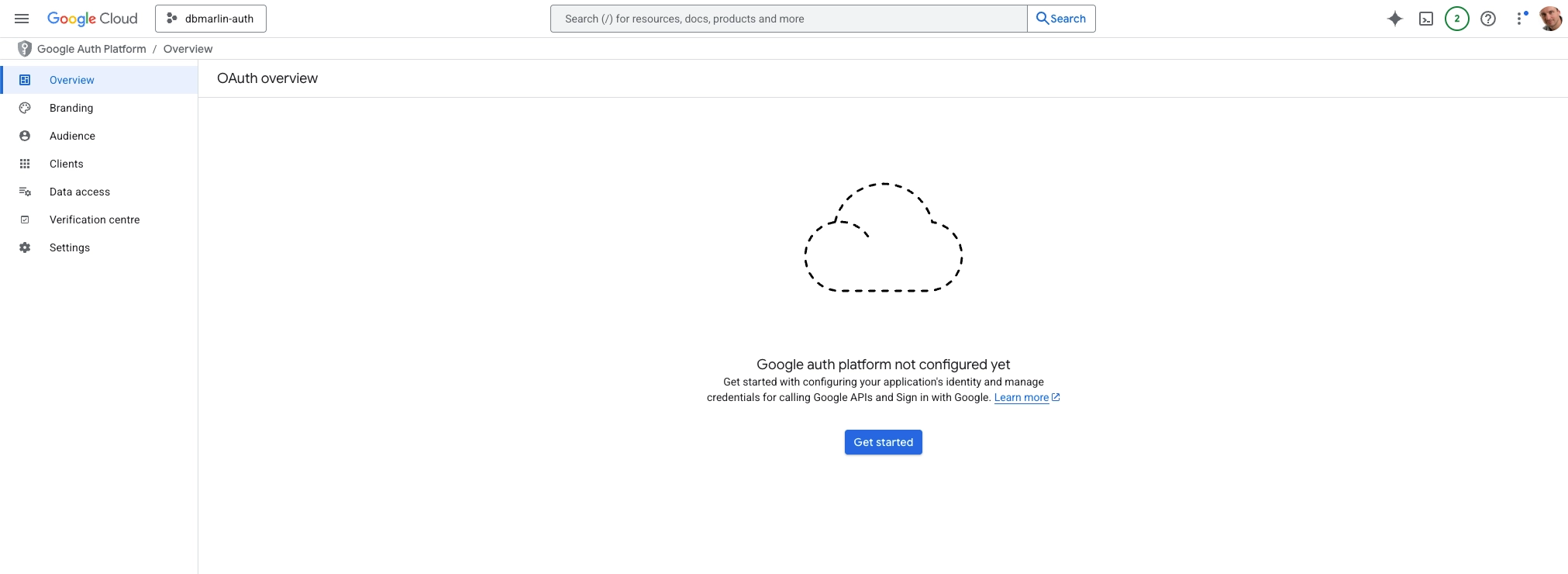
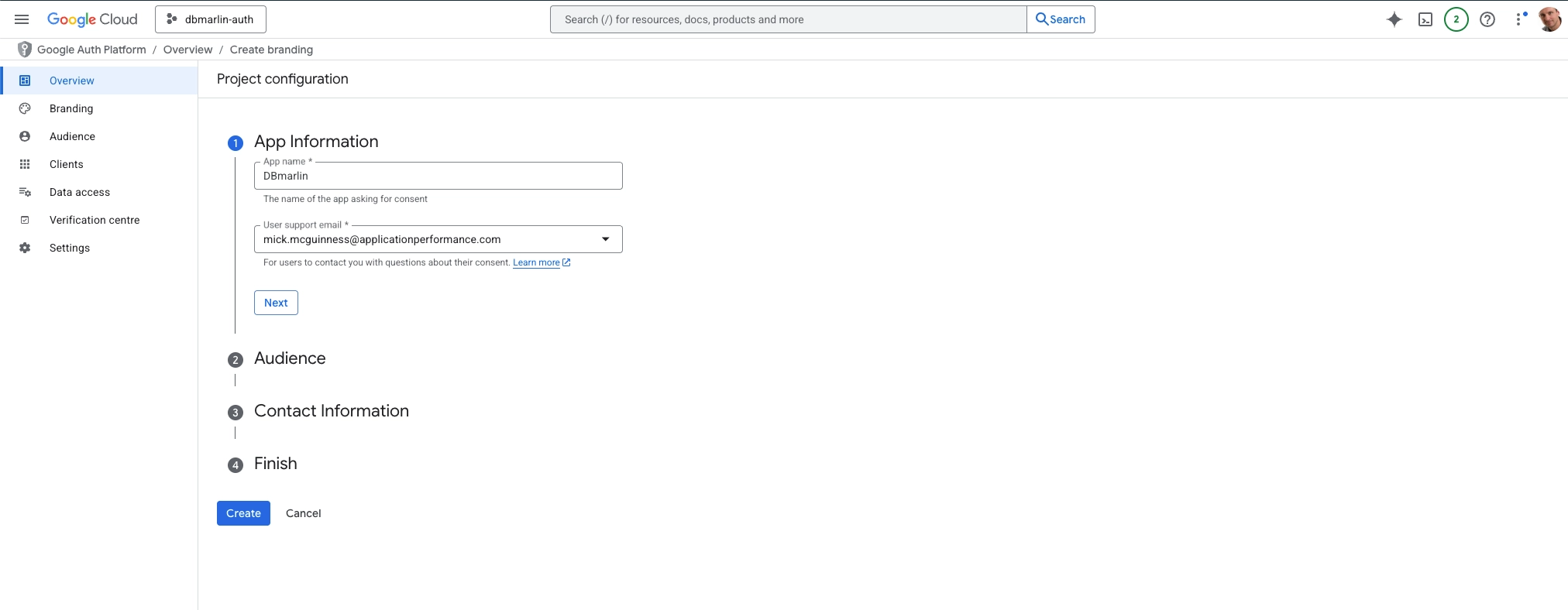
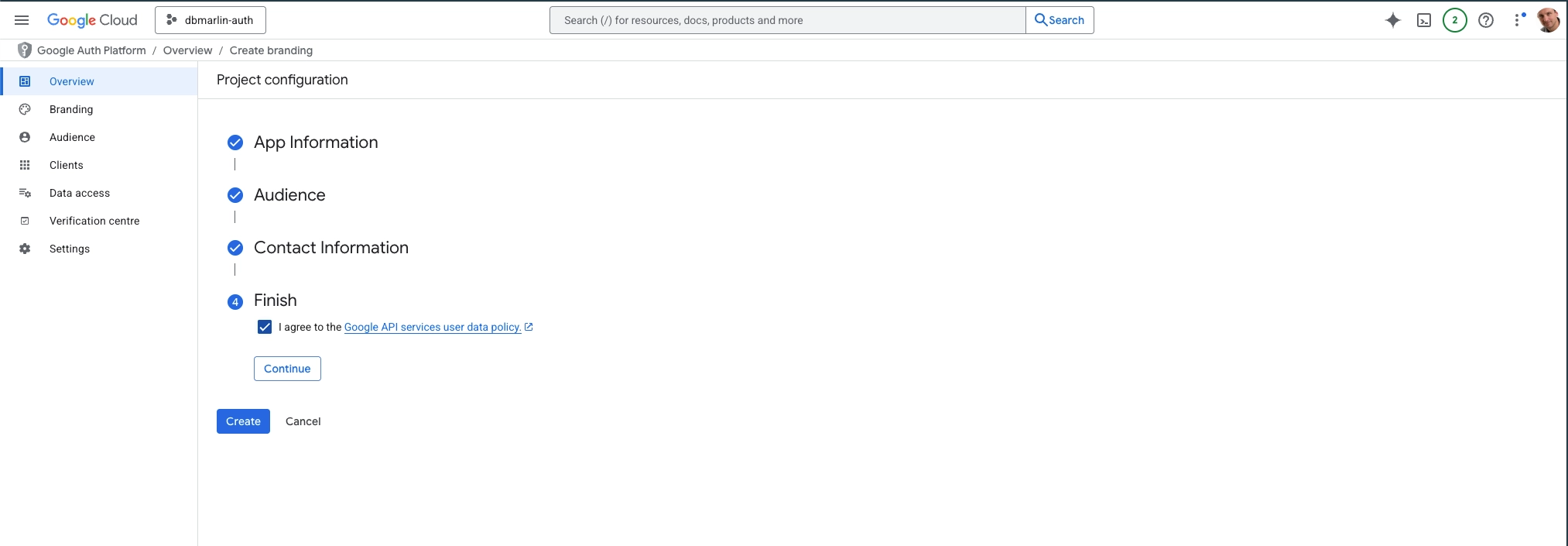
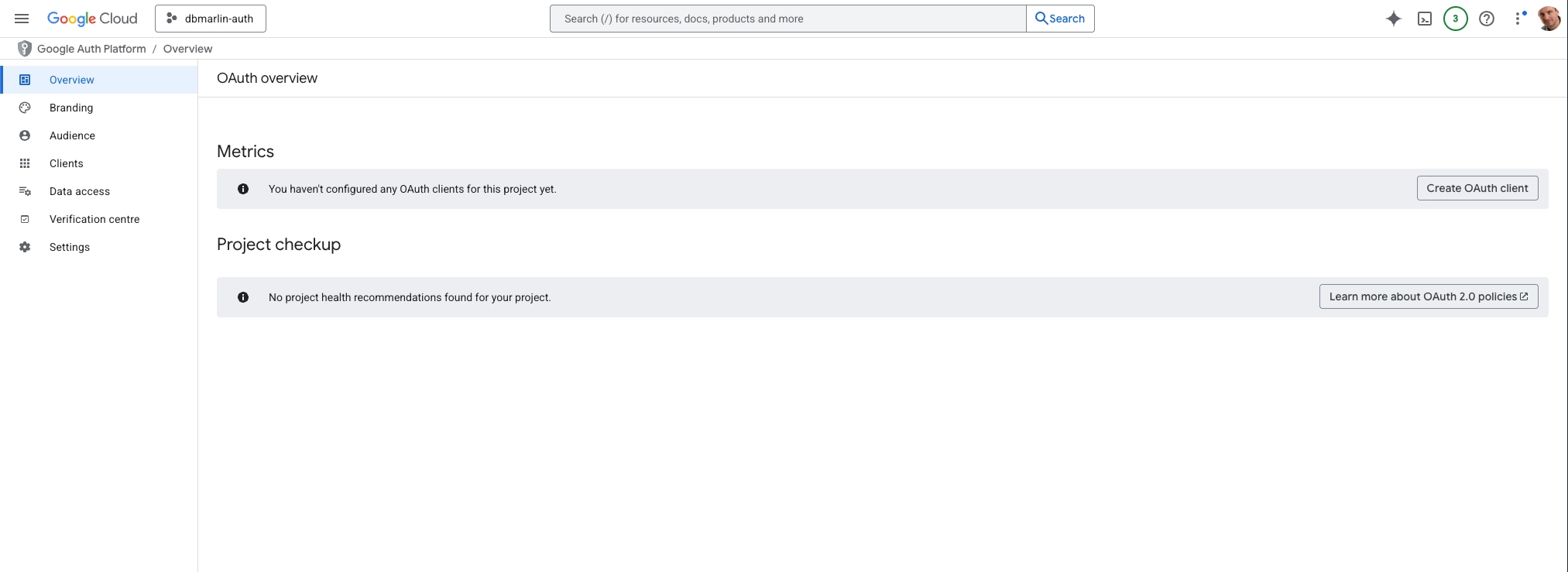
Create OAuth 2.0 Credentials
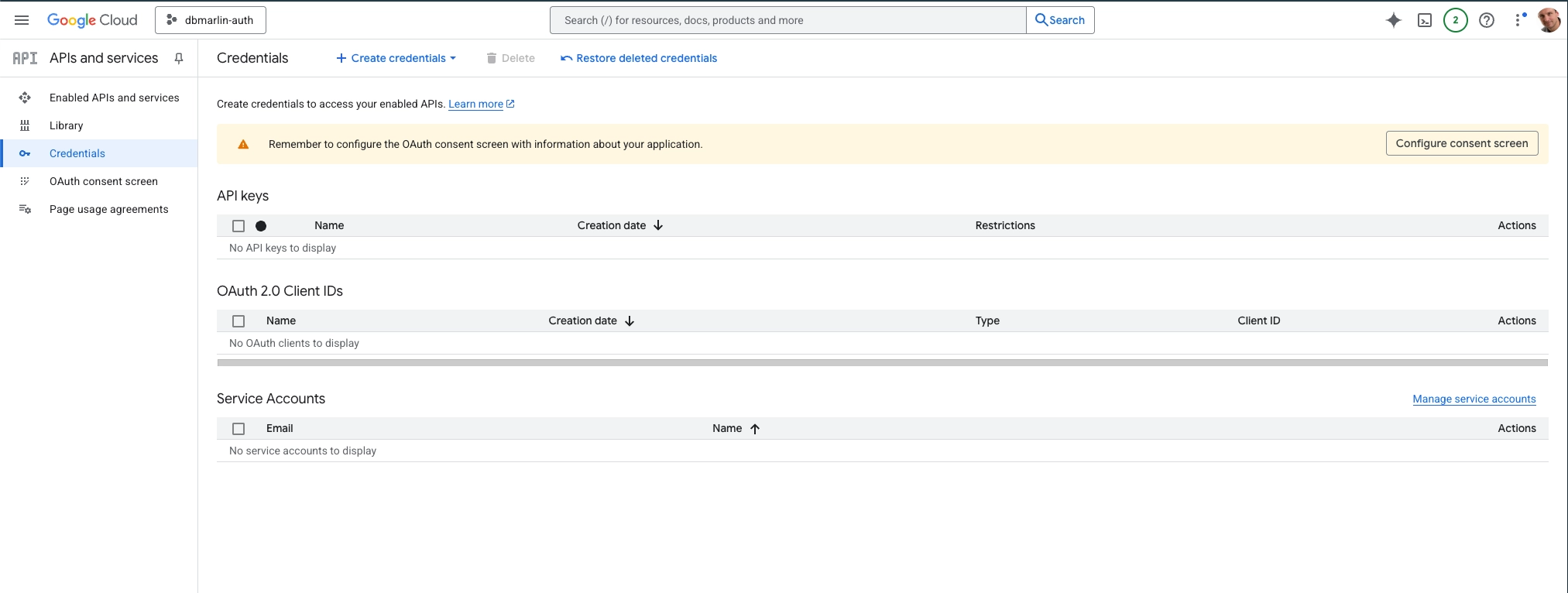
- In the left sidebar, go to "APIs & Services" → "Credentials"
- Click the "+ CREATE CREDENTIALS" button at the top
- Select "OAuth 2.0 Client IDs" from the dropdown
Configure the OAuth Client
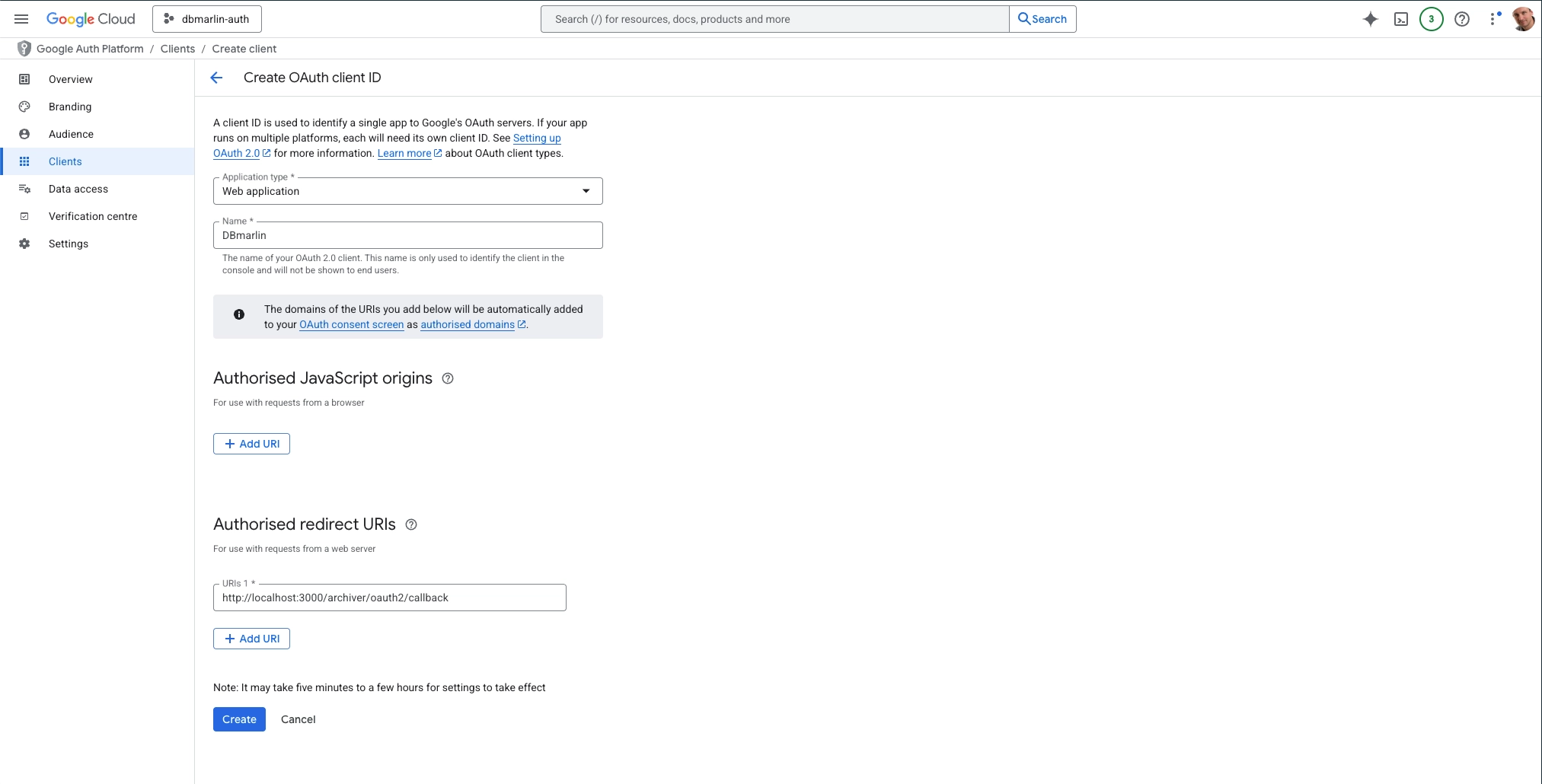
- Application type: Select "Web application"
- Name: Enter a name for your app (e.g., "DBmarlin")
- Authorized redirect URIs: Click "Add URI" and enter:Replace
dbmarlin-serverwith your actual DBmarlin domain (e.g.,dbmarlin.yourcompany.com)https://dbmarlin-server/login
Get Your Credentials
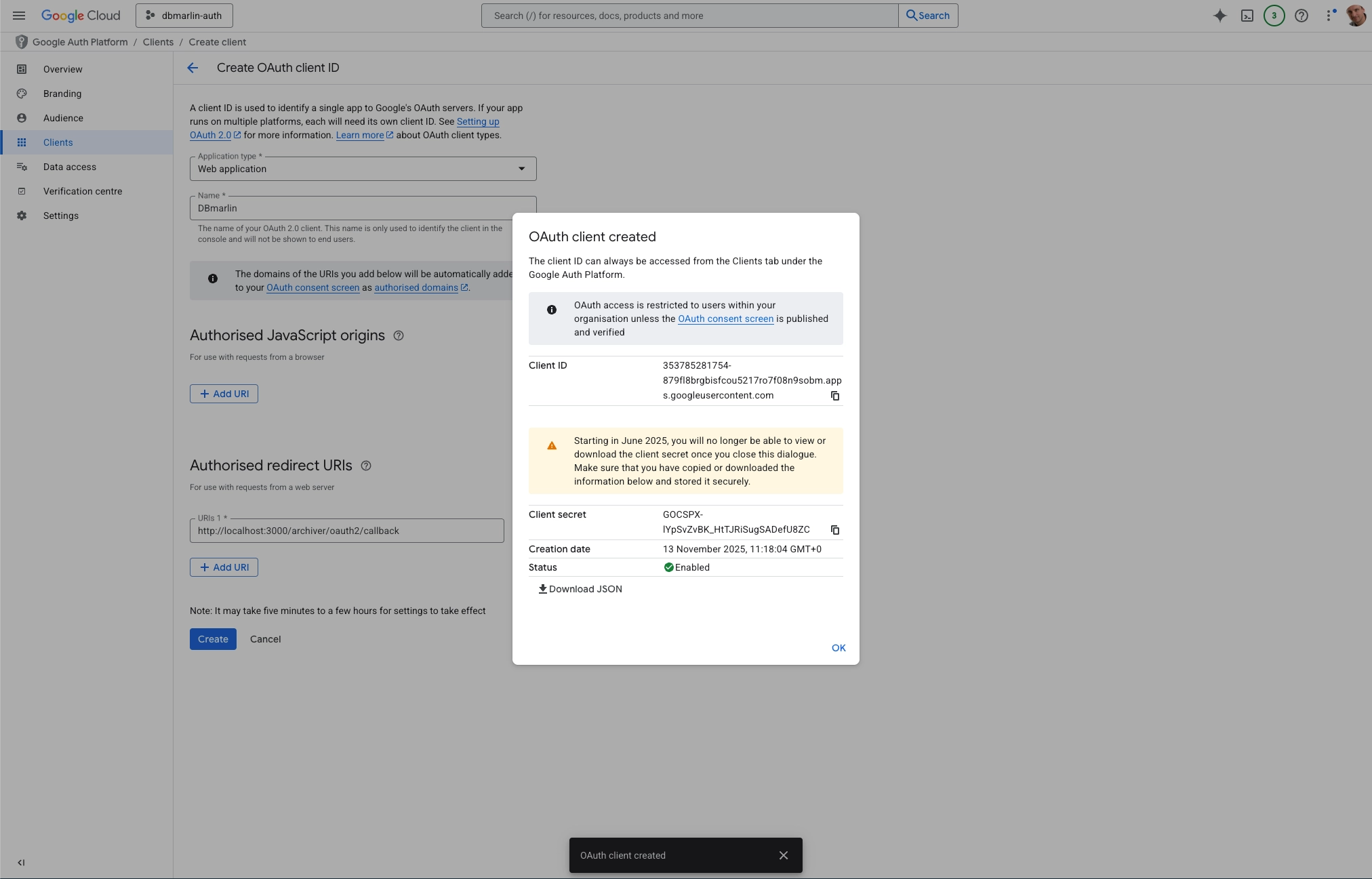
- After creating the client, you'll see a popup or be redirected to the credentials page
- Copy the Client ID and Client Secret - you'll need these for DBmarlin configuration
- The Client ID looks like:
123456789-abcdefghijklmnopqrstuvwxyz.apps.googleusercontent.com - The Client Secret is a long string of characters
Copy the required properties
Copy the Client ID, Client Secret and Redirect URI which are needed for DBmarlin Server SSO setup steps.